
Image subtitles
When enabled, prefer Netflix image-based subtitles; fall back to text subtitles for languages without image tracks.
On Netflix, some languages (such as Chinese, Japanese, and Korean) offer image subtitles in addition to text. With image subtitles enabled, the extension prefers image tracks; for languages without them, it uses text subtitles instead.
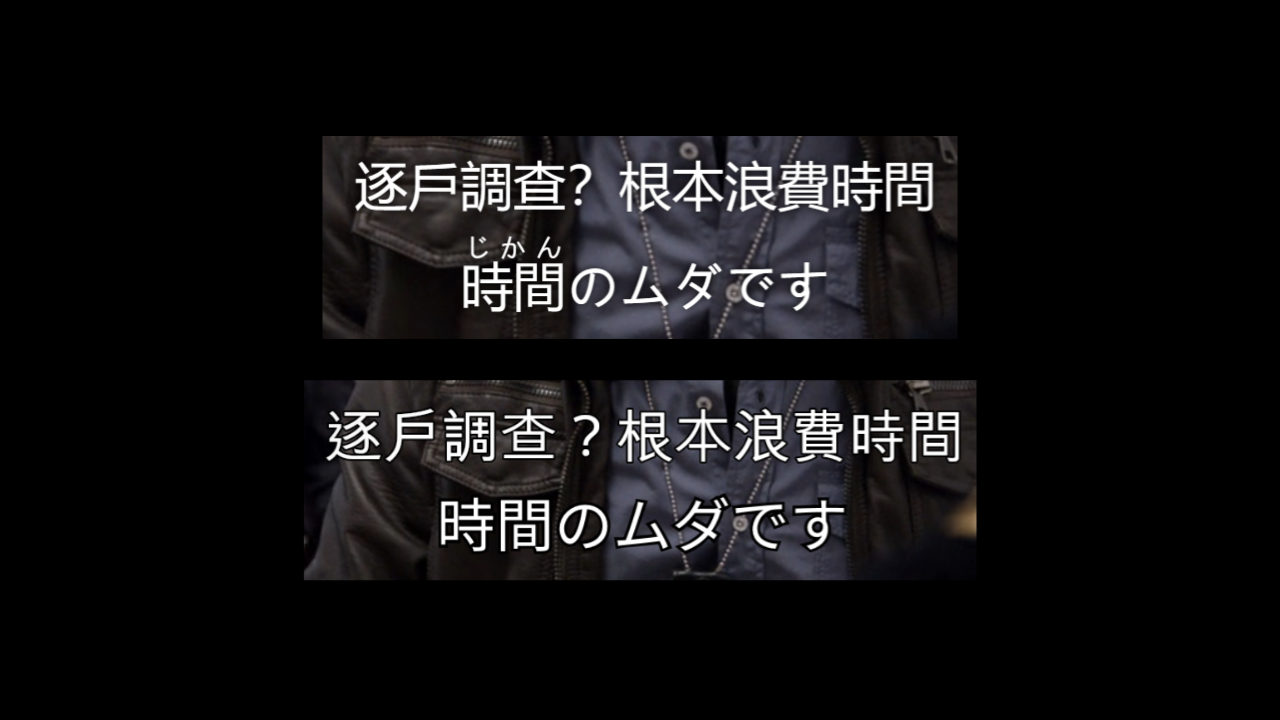
How it works
When enabled, subtitle selection prioritizes image versions. If a language has no image track, it falls back to text automatically—no manual switching.
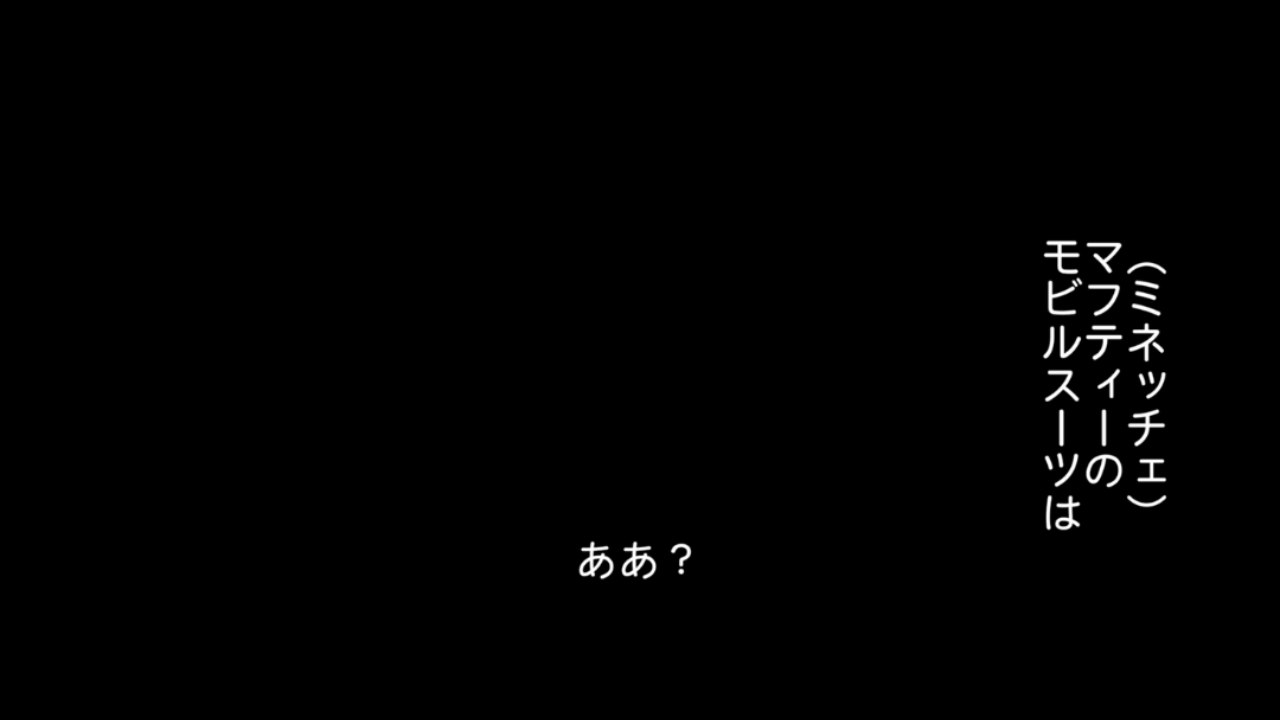
How to turn it on
On a Netflix playback page, open the extension and enable image subtitles in the Settings tab (Netflix-only option). You can then use them as primary or secondary subtitles, same as text tracks.
Notes
- This is a Netflix-only option—not available on other sites.
- Image subtitles come from on-screen graphics, so some interactions (like word-level selection) differ slightly from pure text.
- To add a translation alongside, pick your translation language in the Subtitles tab as usual.
Can’t find certain subtitle languages? Check that this option is on. For general setup, see Quick start.