
Dictation mode
Blank out subtitle words, listen, and type them back—one of the most effective ways to train your ear.
Dictation mode blanks out words in the subtitles so you type what you hear. It’s one of the best ways to turn “I can read it” into “I can hear it.”
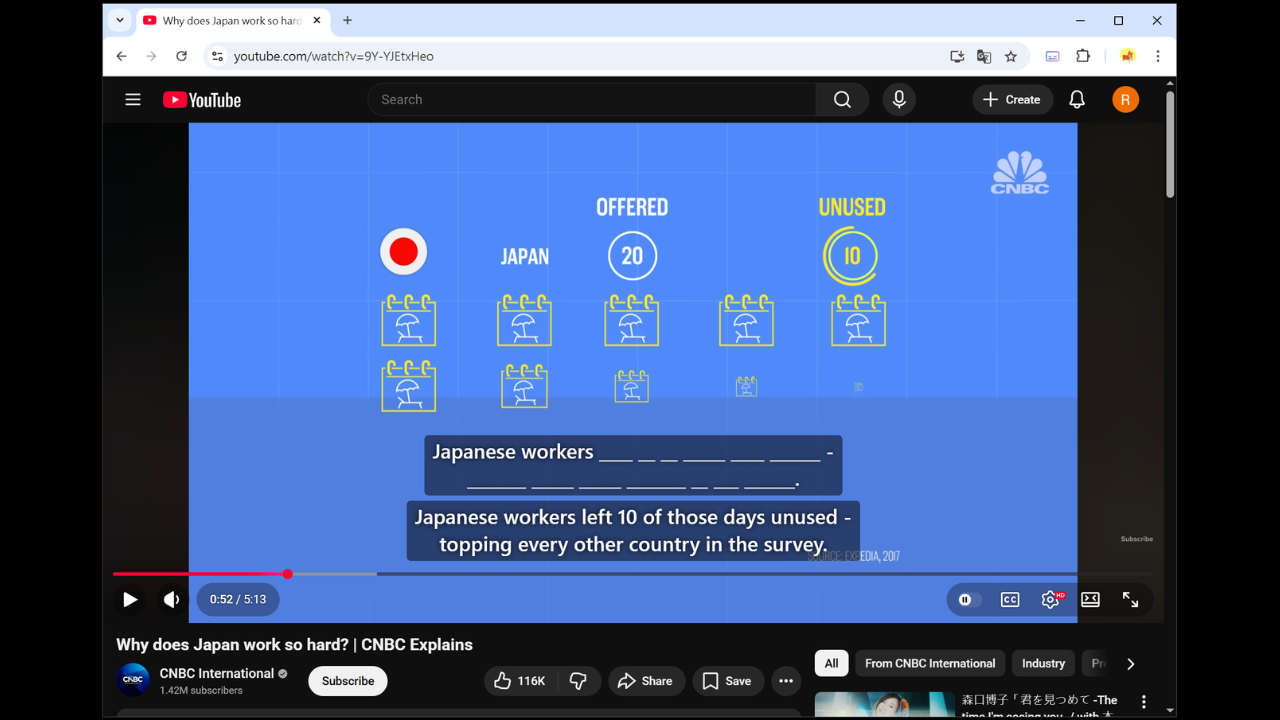
How to start
In the Settings tab, switch mode to Dictation. While the video plays, subtitles show blanks; type what you hear in the input box. Each line pauses automatically until you’re done.
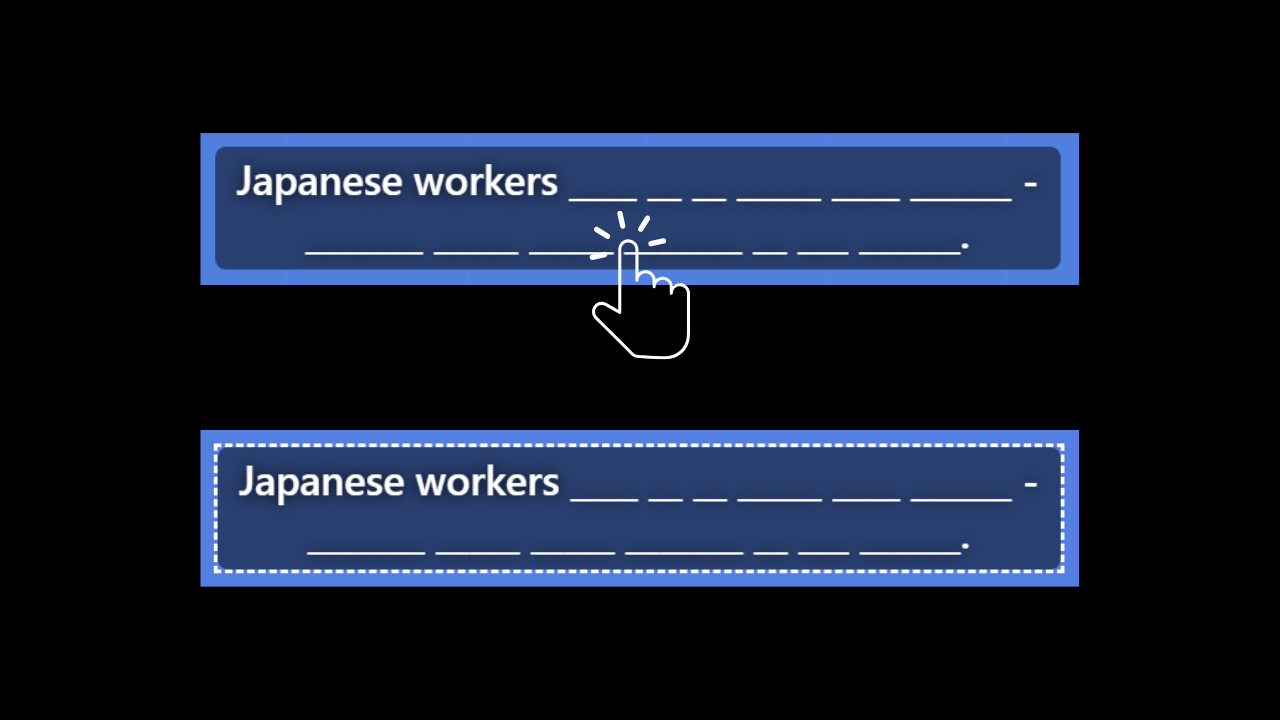
What you can adjust
- Which track: Dictate from primary or secondary subtitles.
- Skip words: Comma-separated list of words to leave visible.
- Ignore bracketed content: Notes like
(music)won’t be blanked. - Typing sound volume: Turn on if you like audio feedback while typing.
- Input box position: Top or bottom.
Handy shortcuts
- Alt + H: Hint
- Alt + W: Replay from the current word
“Replay from the current word” needs word-level timing. It works with YouTube auto-captions, AI Segmentation, and Whisper subtitles.
When you’re stuck, use a hint, then listen through the full line again. Ready to speak? Try Speaking mode next. Want to match the rhythm along the timeline? Try Shadowing mode too.