Learning Mode
Word Lookup
-
Enable
Learning Modeon theSettingspage. -
Set the
target languagefor translation. -
Select any text in the subtitles, and the lookup window will pop up automatically.
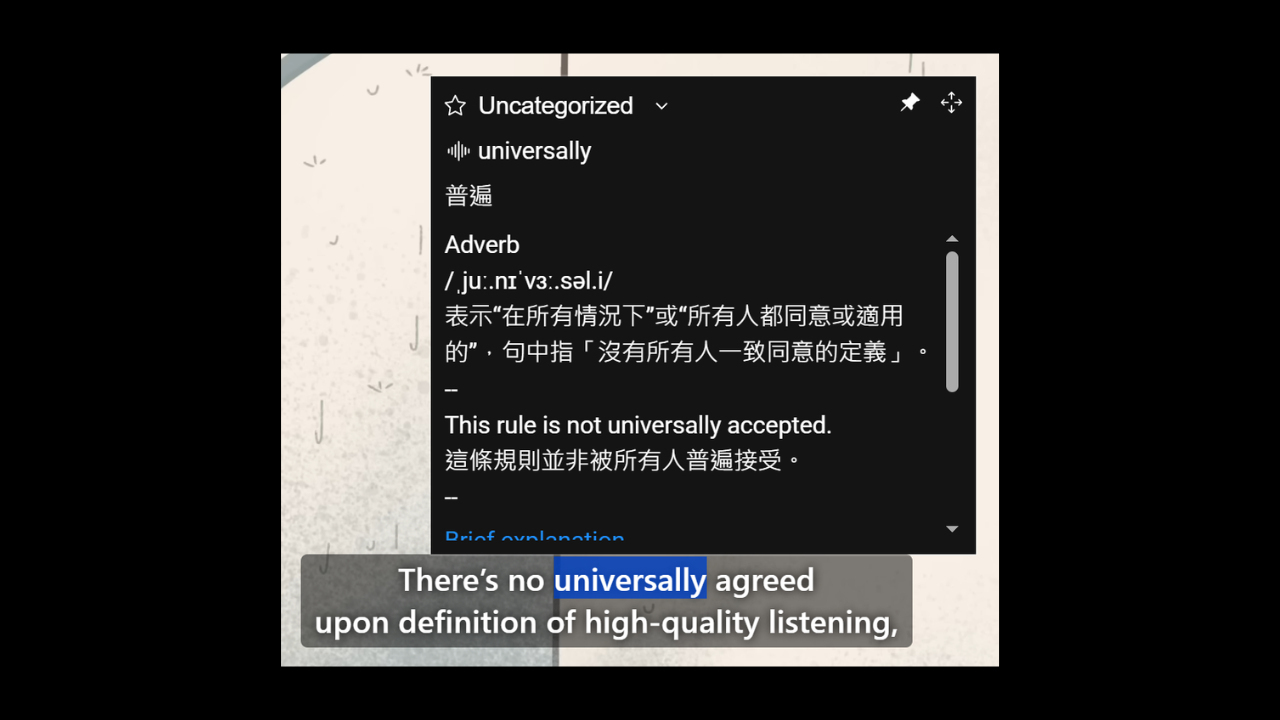
Saving Words
-
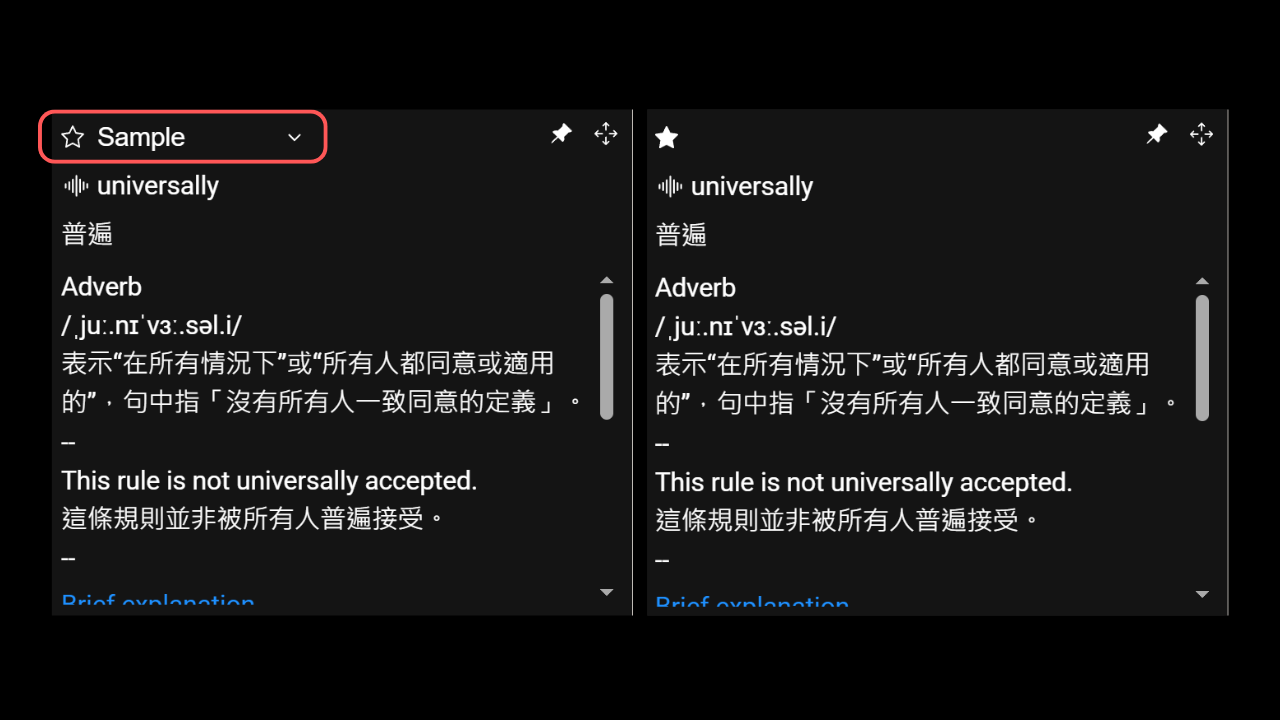
Select a deck.
-
Click the
Starbutton. -
Saved successfully (as shown below).
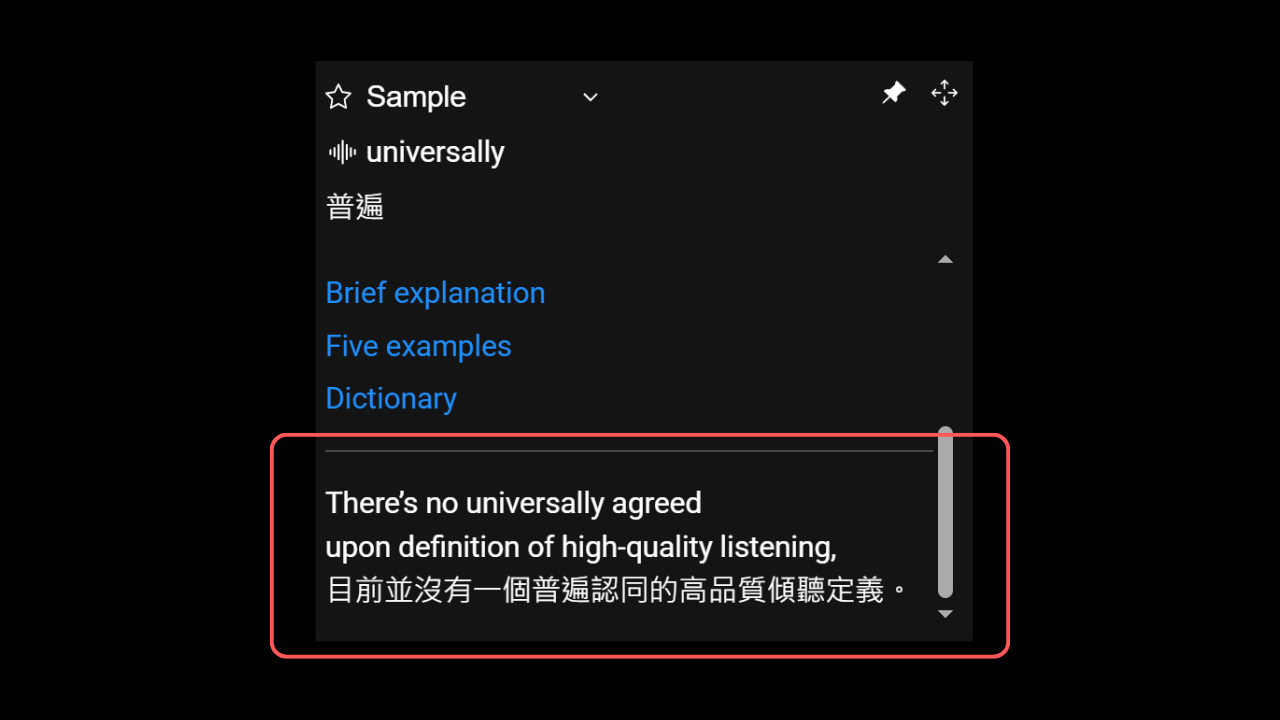
When you look up the same word again, the previously saved example sentences will appear at the bottom of the window.
Creating Decks
-
Go to the
Learning Modesection on theSettingspage and click the link to open the Cards page. -
Click the
Plusbutton on the top navigation bar (indicated by the red box).
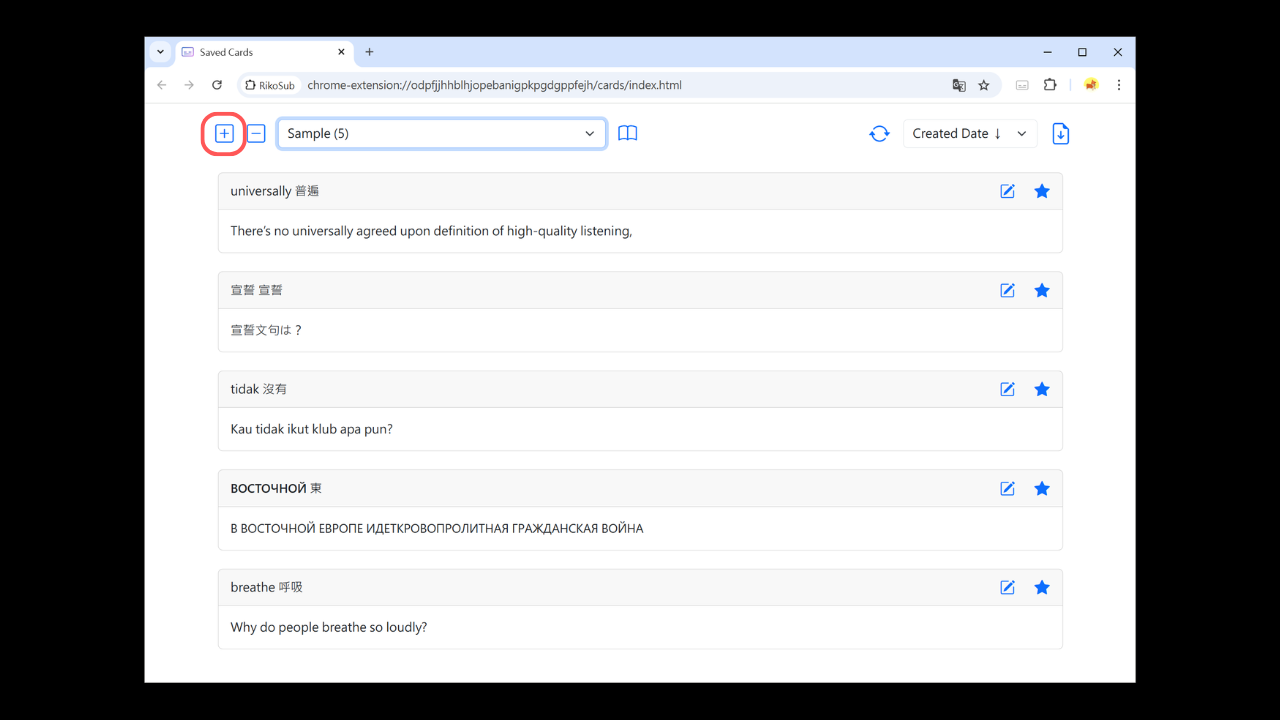
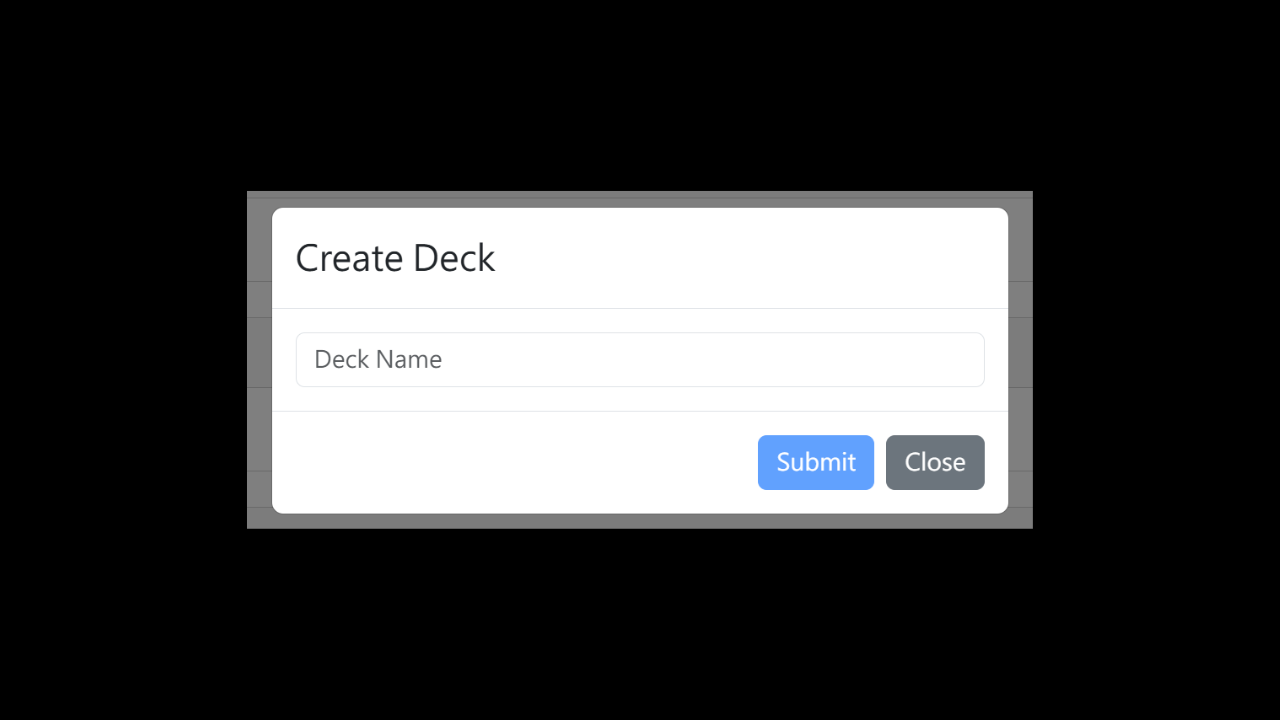
- Enter the deck name and confirm.
Reviewing Words
Open Learning Page
-
Go to the
Learning Modesection on theSettingspage and click the link to open the Cards page. -
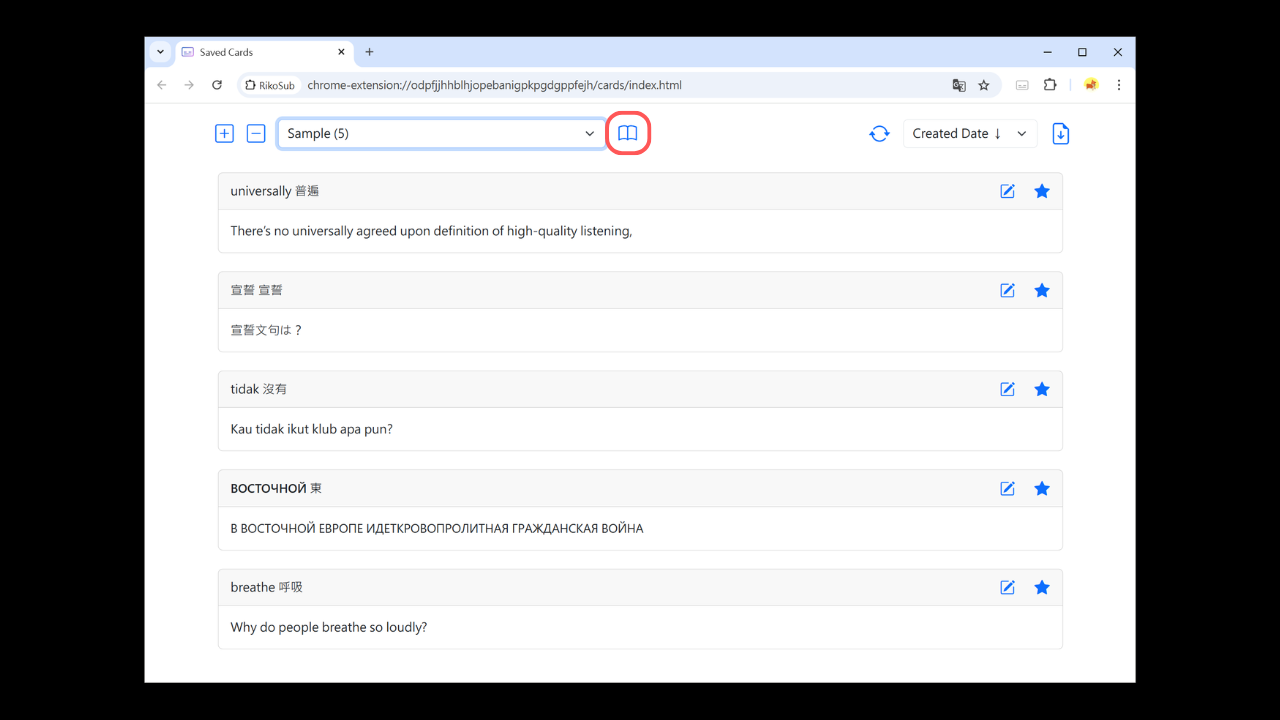
Click the
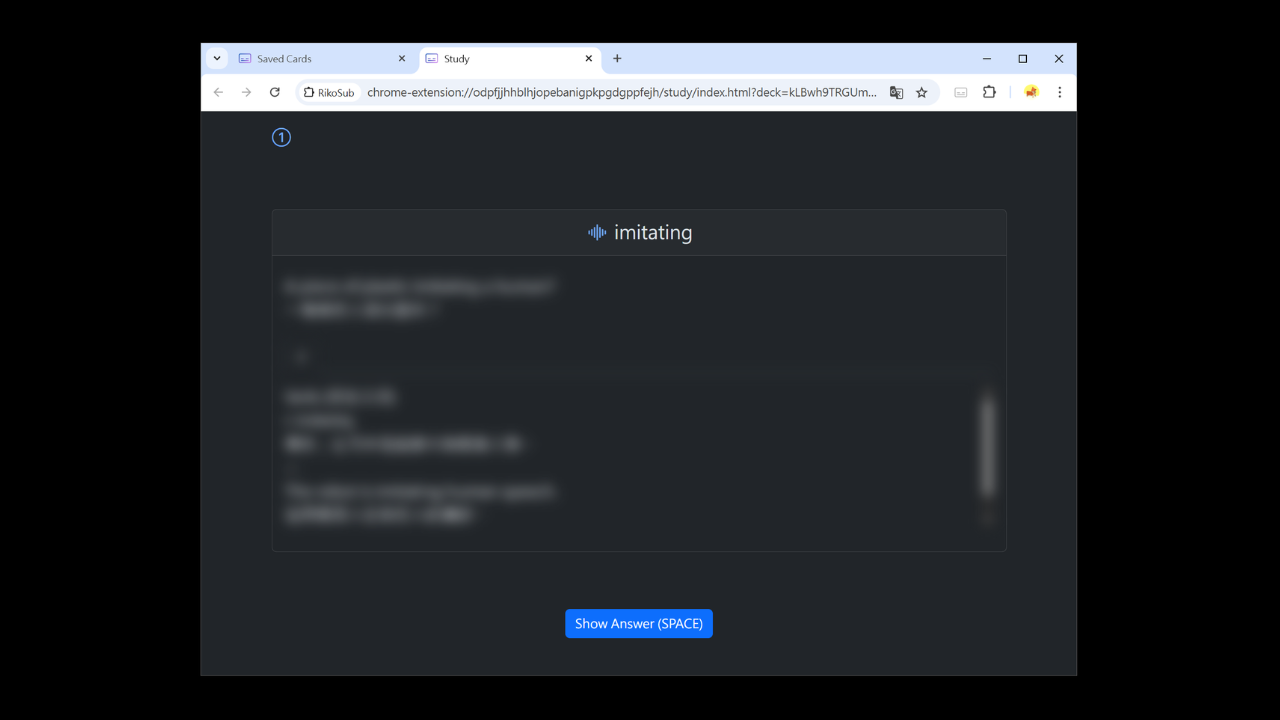
Learnbutton on the top navigation bar (indicated by the red box) to enter the Learning page.
Set Front Side Style
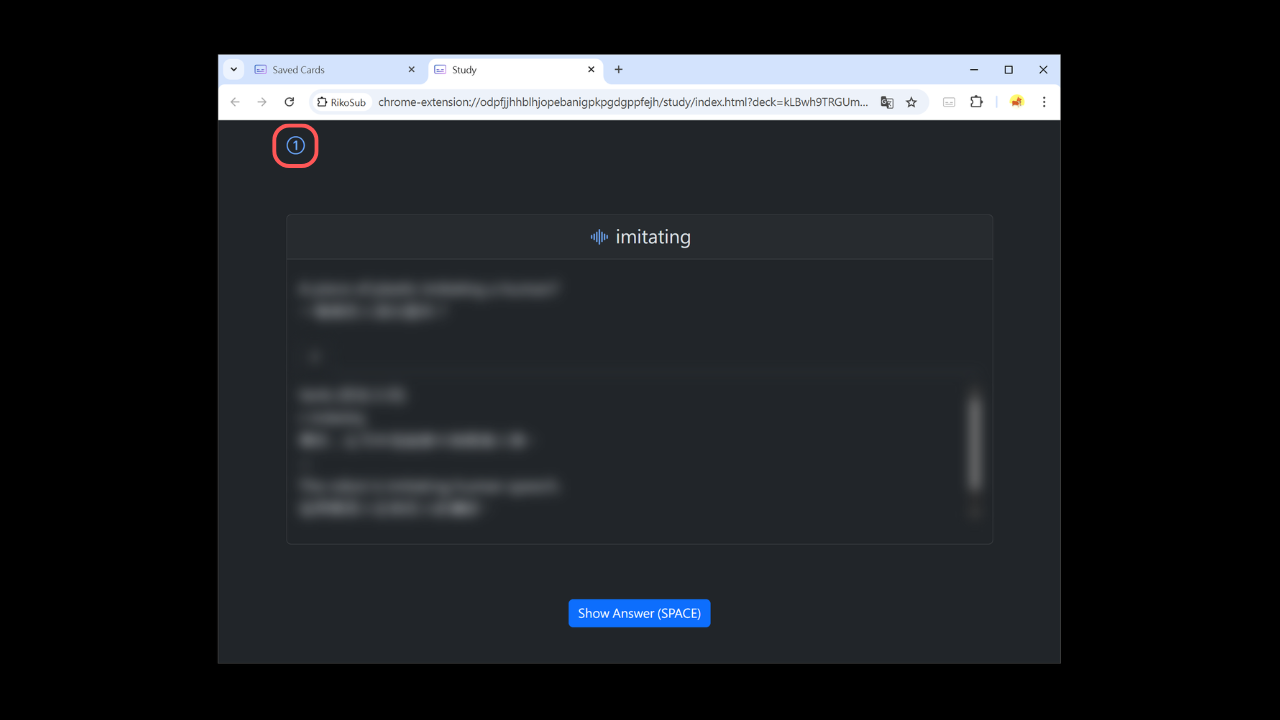
- Click the toggle button in the top left corner (indicated by the red box).
- Select the information you want to display on the front of the card.
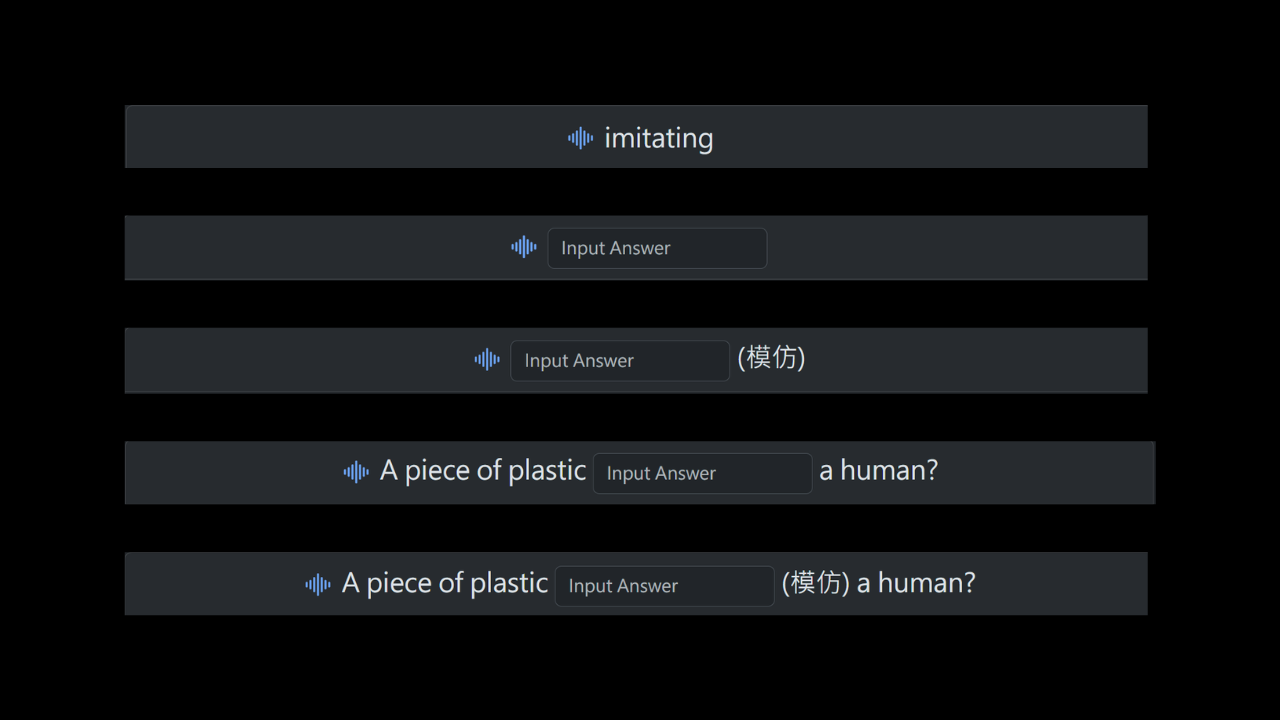
Spaced Repetition
The system uses the FSRS algorithm to automatically schedule the next review date.
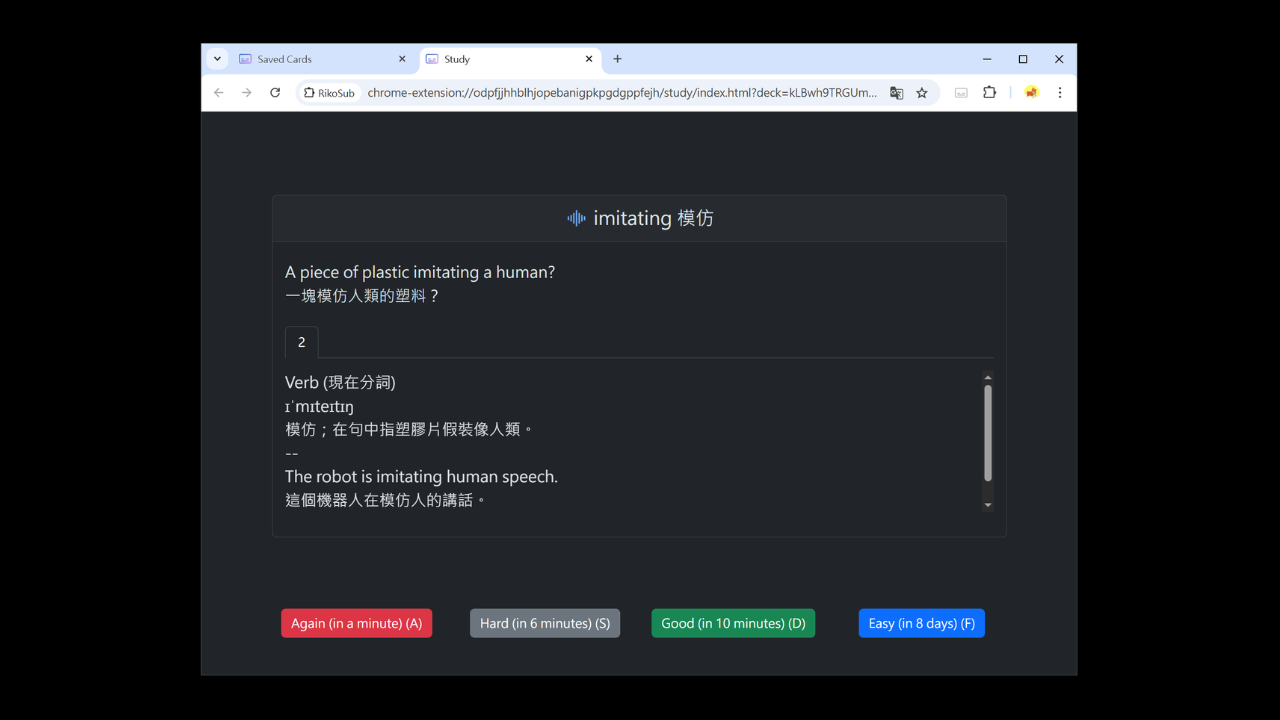
Exporting Saved Words
-
Go to the
Learning Modesection on theSettingspage and click the link to open the Cards page. -
Click the
Downloadbutton on the top navigation bar (indicated by the red box).
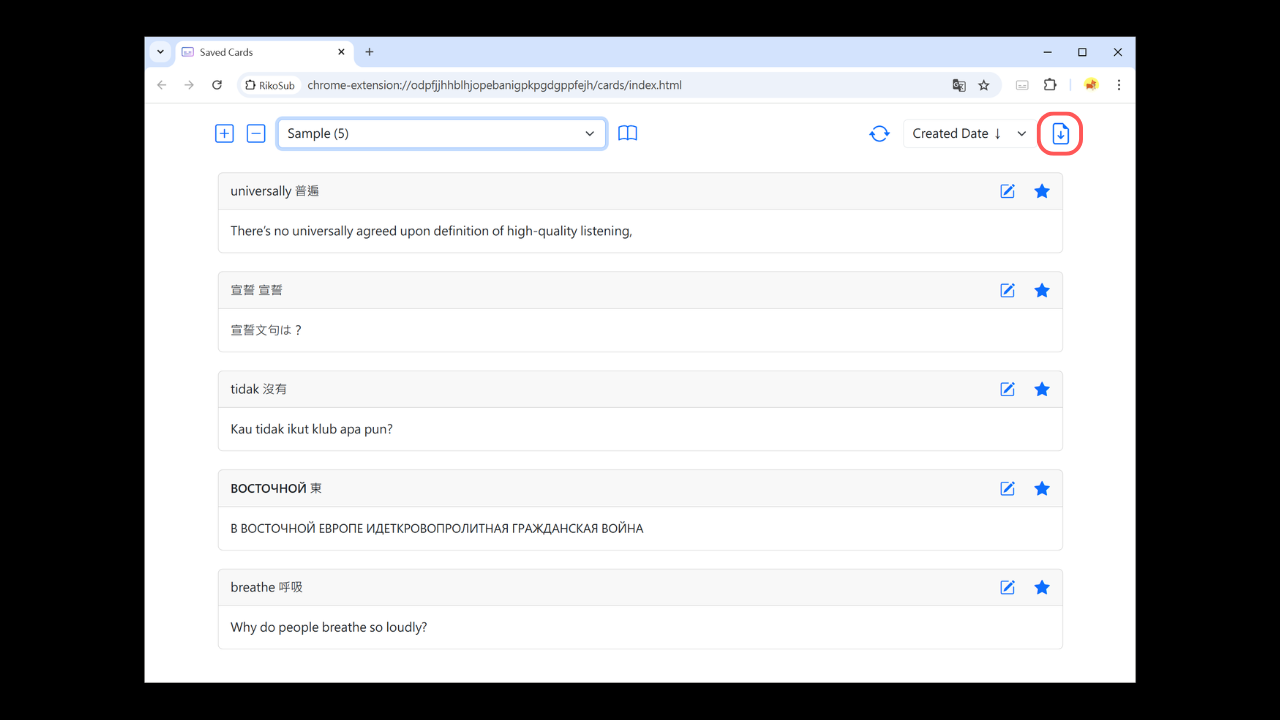
- All words will be exported as a CSV file, which you can import into Anki or other software for study.